Wearing optimization
Available from SDK 1.1.8 and FW 7.10
Wearing optimization is a process run on the bracelet to adapt sensor algorithms to the user’s skin type. It adjusts the LED power to match the skin type, which is critical for accurate readings—particularly for metrics like SpO₂.
This process typically takes 2 minutes if the patient remains still, but may take up to 4 minutes if movement is detected. The patient must be sitting or lying down, and remain still during the procedure.
Wearing optimization should be performed at least once, ideally right after pairing the device.
Description
After registration and pairing of the bracelet, your App should ask to perform Wearing Optimization.
The patient can sit or lay in bed. To ensure optimal results, could you please ask the patient to remain still during Wearing Optimisation (typically 2 minutes, up to 4 minutes if movement is detected). This small step has a significant impact on measurement accuracy.
Optimal LED power levels are critical for accurate SpO₂ measurements using PPG because they directly influence the signal quality and reliability of the optical sensor’s readings. Here's why:
1. Skin Color (Melanin Content)
Darker skin contains more melanin, which absorbs more light, particularly in the visible spectrum. To compensate:
- Higher LED power may be required to ensure enough light penetrates the skin and is reflected or transmitted back to the sensor.
- Optimizing LED power minimizes signal attenuation and reduces the likelihood of underestimation of SpO₂ in people with dark skin tones.
2. BMI (Tissue Thickness)
Individuals with higher BMI often have thicker subcutaneous tissue, which can scatter and absorb light:
- Adjusted LED intensity helps ensure the light reaches the capillaries and returns a clear signal.
- This optimization improves signal-to-noise ratio, crucial for differentiating between oxygenated and deoxygenated hemoglobin.
3. Perfusion (Blood Flow)
Perfusion impacts the strength of the pulsatile PPG signal:
- In low-perfusion states (e.g., cold extremities, vasoconstriction), less blood flow reduces the AC component of the PPG signal.
- Increased or modulated LED power enhances detection of weak pulses, allowing for reliable SpO₂ calculation even under challenging physiological conditions.
Summary:
By dynamically adjusting LED power levels per individual during the Wearing Optimization phase, the system tailors light output to each user’s unique skin tone, tissue characteristics, and perfusion level. This ensures accurate, reproducible SpO₂ measurements across diverse populations
When to Perform Wearing Optimization
First time
After the initial pairing of the device.
Redo the wearing optimization
Whenever the user updates key settings such as:
- Wrist position
- Gender
- Significant changes in height or weight
- Birthdate
- Skin type
If the user changes the tightness of the strap, please redo a wearing optimization as well.
If the status of the bracelet requires a new wearing optimization
Prerequisites
Ensure you have completed the initialization steps listed below:
- Set time
- Set plan
- Set sampling rates
- Set User Profile
- Wrist position
- Gender
- Height
- Weight
- Birthdate
- Skin type
⚠️ Skin type is especially important. The wearing optimization process uses the default skin type set in the user profile.
Why skin type matters?
Two reasons, first the wearing optimization process itself:
The wearing optimization process starts from the user's skin type and adjusts around it to calibrate more efficiently—this significantly reduces processing time.
Second, for the calculation of the vital signs:
If wearing optimization fails, the default skin type is still used by the bracelet’s algorithms to estimate vital signs, including:
- Pulse rate
- Respiration rate
- SpO₂
Start wearing optimization
From SDK 1.2.0
Import the UI module in your Gradle file:
implementation "com.corsano.sdk:ui:$corsanoSdkVersion"
The screens use the SDK's own palette and can be re-skinned to match your app — see Theming the SDK screens.
Wearing optimization screen
-
New
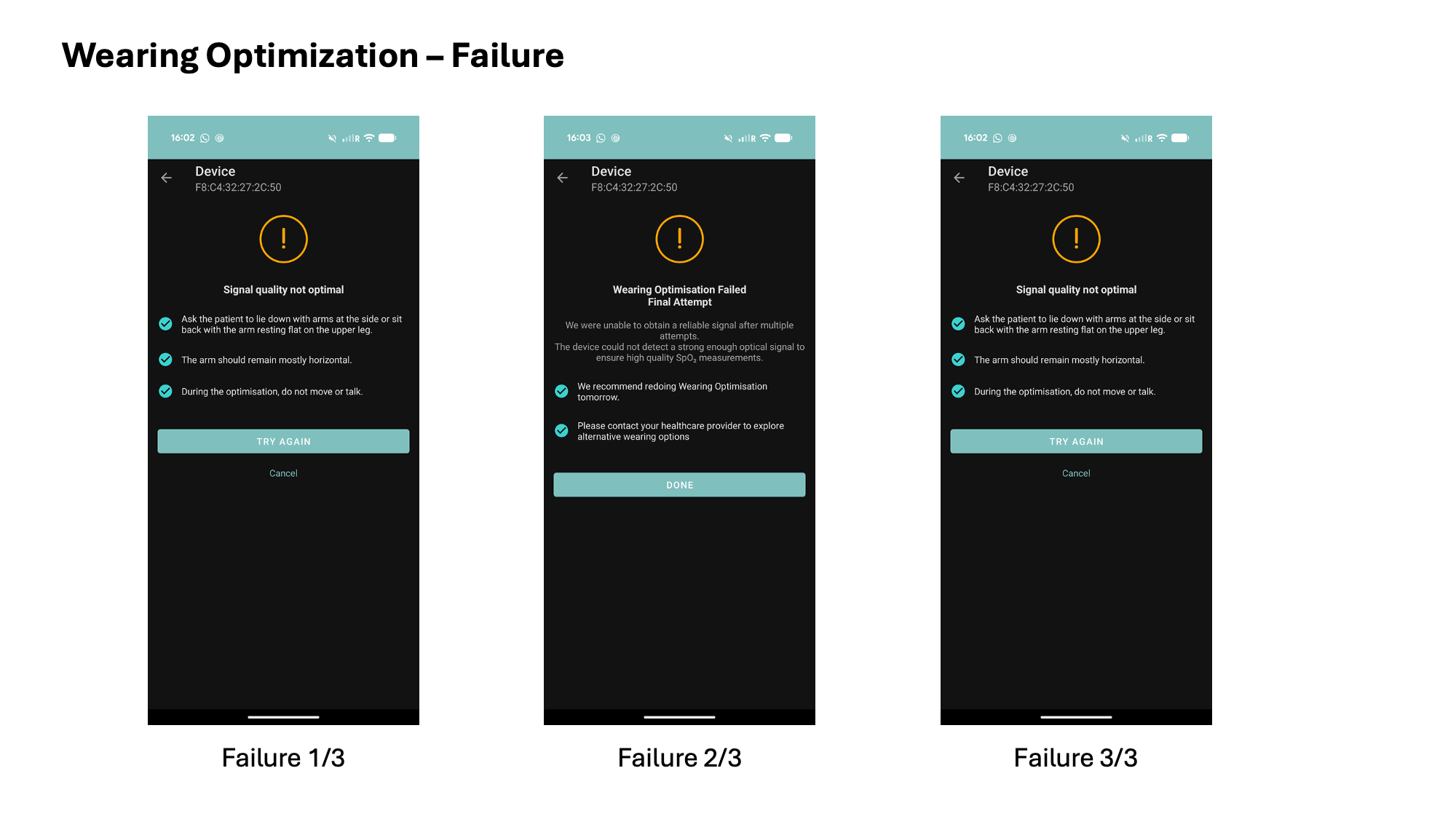
sdk:uimodule providingCorsanoWearingOptimizationFragment— a guided, multi-step wearing-optimization flow (confirm profile, positioning tutorials, live measurement, and success / failure / retry screens) built onViewPager2. -
Handles the device back button to navigate within the flow instead of leaving the screen.
-
Localized into 13 additional languages: Arabic, Danish, German, Spanish, Finnish, French, Italian, Georgian, Norwegian (Bokmål), Dutch, Polish, Portuguese and Swedish. Arabic was added in 2.3.0.
-
Arabic is a right-to-left language: declare
android:supportsRtl="true"on your<application>element so the flow mirrors correctly.
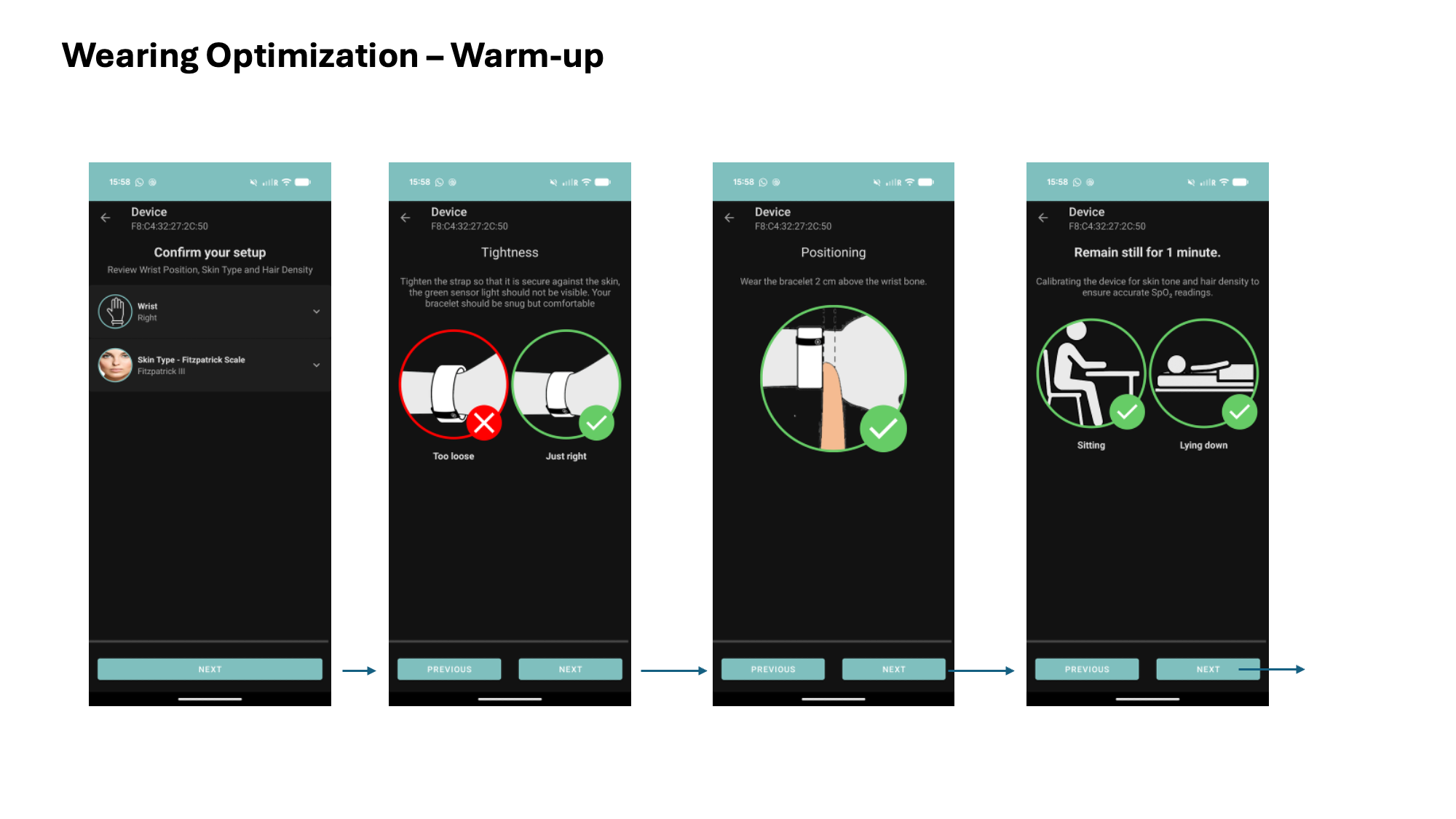
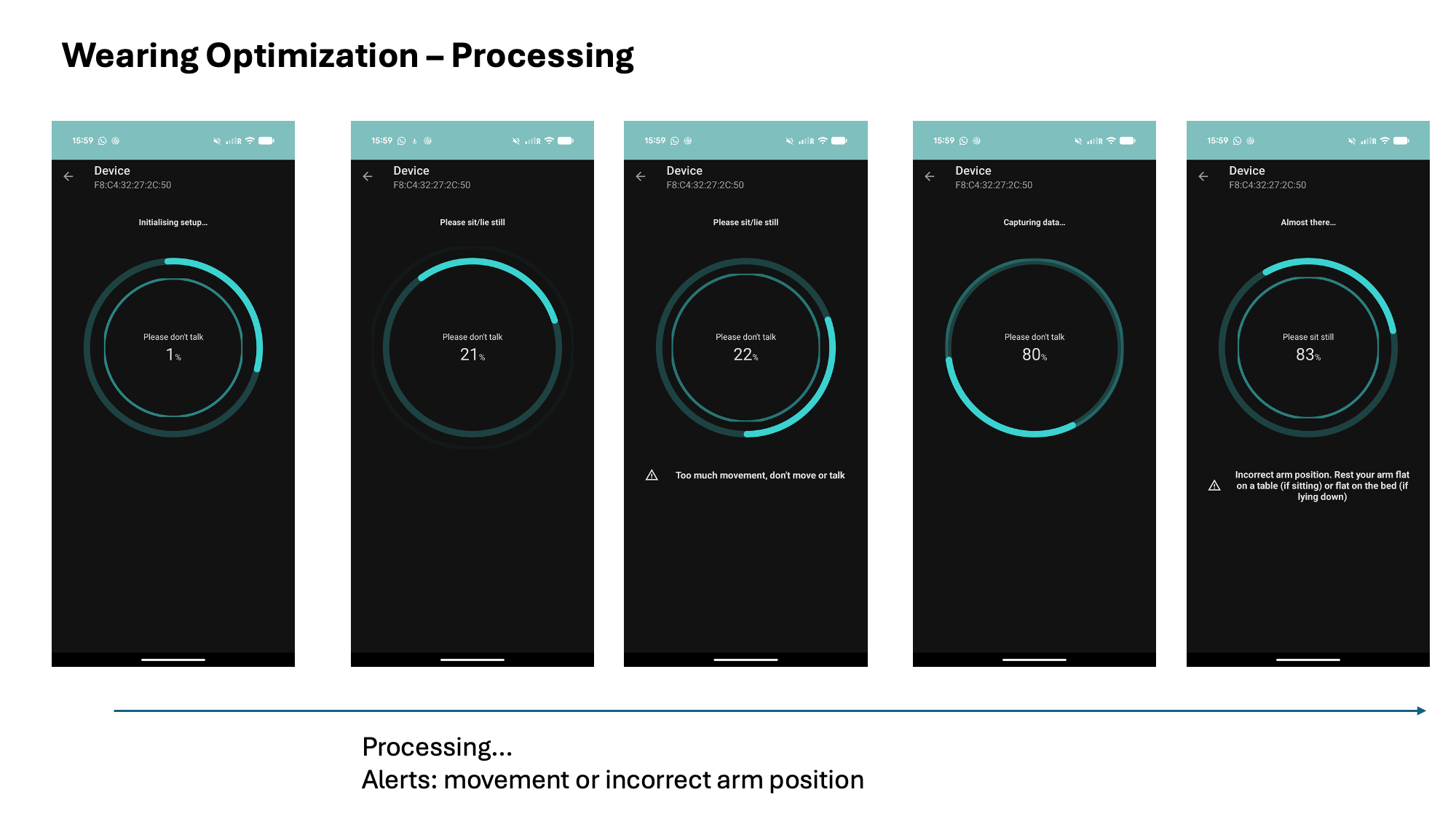
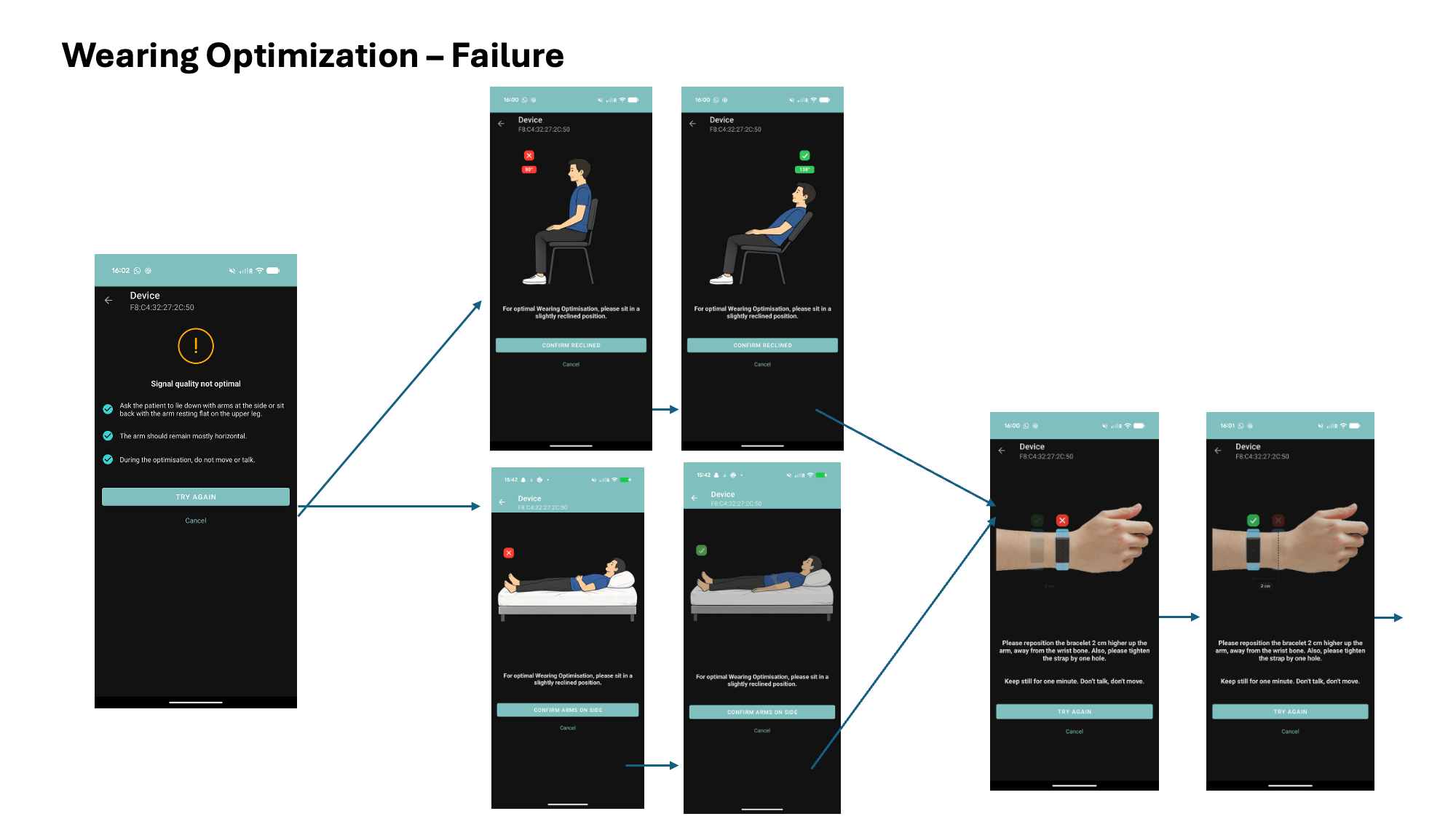
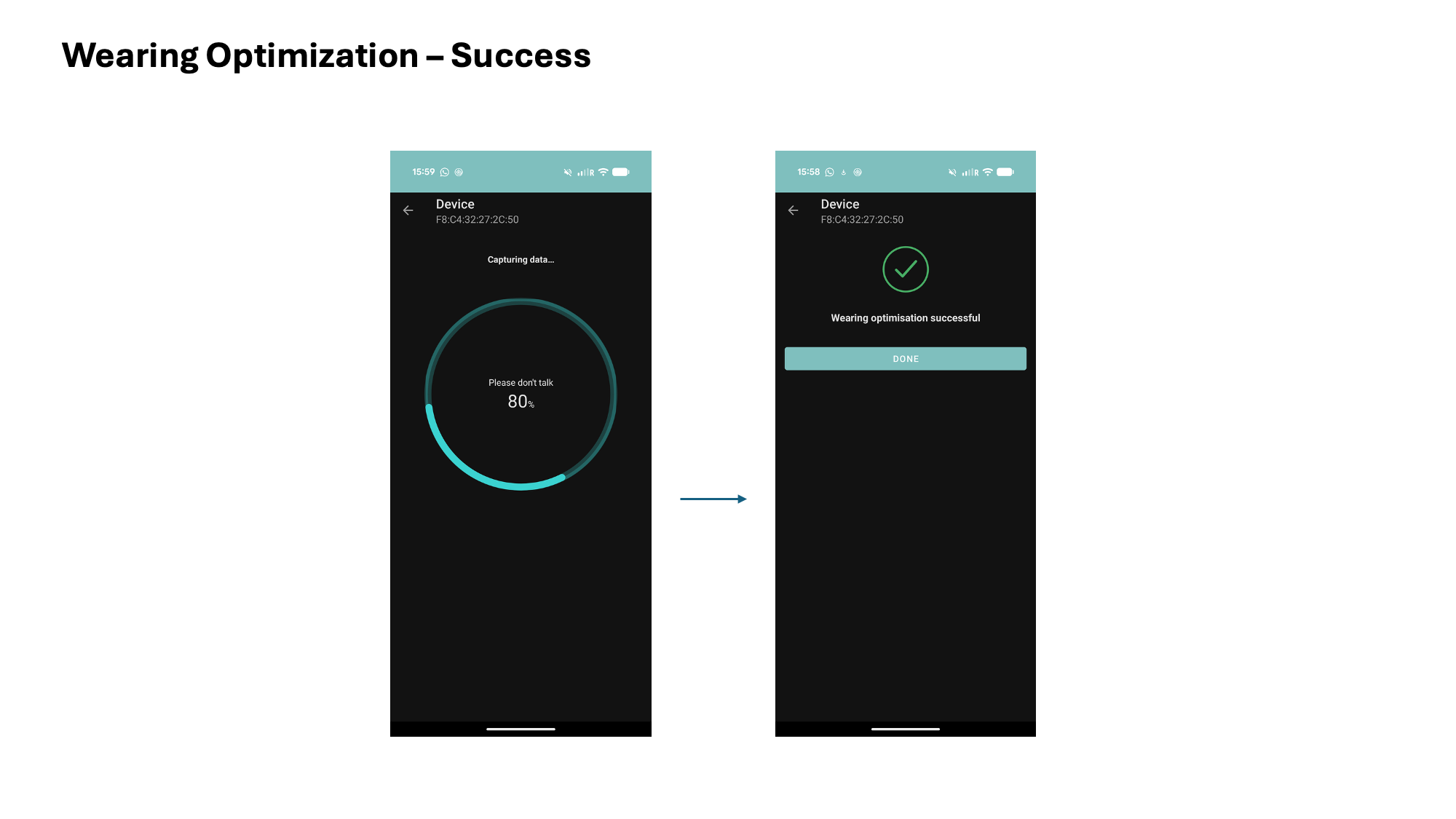
Wearing optimization events (optional)
CorsanoWearingOptimizationFragment now reports what happens on screen to the host through an activity-scoped WearingOptimizationEventViewModel. It is backed by an unbounded Channel, so events emitted while the host is in the back stack are buffered and delivered once it resumes.
Observe them from any component hosted by the same Activity — the Activity
itself, or another Fragment via activityViewModels():
// In the host Activity:
private val woEvents: WearingOptimizationEventViewModel by viewModels()
// In a host Fragment: by activityViewModels()

lifecycleScope.launch {
    repeatOnLifecycle(Lifecycle.State.STARTED) {
        woEvents.events.collect { event ->
            when (event) {
                is WearingOptimizationEvent.ButtonClick     -> event.button   // which control
                is WearingOptimizationEvent.ChangedSkinType -> event.skinType
                is WearingOptimizationEvent.ChangedWrist    -> event.wrist
                is WearingOptimizationEvent.StatusChanged   -> event.status   // + event.details
                is WearingOptimizationEvent.Error           -> event.type     // + event.throwable
                is WearingOptimizationEvent.Communicating   -> event.reason   // + event.state
            }
            // Every event also exposes a stable String id: event.name, e.g. "CLICK_ON_START_BUTTON"
        }
    }
}
Event types (WearingOptimizationEvent):
ButtonClick(button)— every button / clickable item across the flow (main fragment and sub-screens).buttonis aWearingOptimizationButton:BACKNEXTCONFIRM_PROFILESTARTWRIST_ITEMSKIN_TYPE_ITEMFAILURE_TUTORIAL_SITTINGFAILURE_TUTORIAL_LYINGFAILURE_SKIPFAILURE_TRY_AGAINLAST_FAILURE_CLOSESUCCESS_DONETUTORIAL_NEXTTUTORIAL_SKIP
ChangedSkinType(skinType)/ChangedWrist(wrist)— the user changed the selection on the confirm-setup screen.StatusChanged(status, details)/Error(type, throwable)— forwarded from theWearingOptimizationListenerdevice callbacks.Communicating(reason, state)— emitted around each device exchange that shows a progress dialog.reason∈ {SET_USER_PROFILE,START_MEASUREMENT};state∈ {STARTED(before the request),FINISHED(once it succeeds or fails)}.
Launching CorsanoWearingOptimizationFragment (mandatory)
The screen is a Navigation destination (R.id.corsanoWearingOptimizationFragment).
Launch it with its arguments:
navController.navigate(
    R.id.corsanoWearingOptimizationFragment,
    bundleOf(
        "deviceAddress" to device.address,    // BLE MAC address of the connected device
        "birthdayYear"  to 1980,              // >= 1900
        "birthdayMonth" to 1,                 // 1..12
        "birthdayDay"   to 1,                 // 1..31
        "gender"        to Gender.MALE.name,
        // optional - omit either one to let the user pick it on the confirm screen
        "skinType"      to SkinType.OLIVE.name,
        "wrist"         to Wrist.RIGHT.name,
    ),
)
| Argument | Required | Value |
|---|---|---|
deviceAddress | Yes | BLE MAC address of the connected device |
birthdayYear | Yes | >= 1900 |
birthdayMonth | Yes | 1..12 |
birthdayDay | Yes | 1..31 |
gender | Yes | A Gender name: MALE, FEMALE, UNSPECIFIED |
skinType | No | A SkinType name. Omit to let the user pick it |
wrist | No | A Wrist name: LEFT or RIGHT. Omit to let the user pick it |
skinType and wrist are optional. When either is left out, the confirm-setup screen highlights the missing field in red and the user has to fill it in before the Next button becomes active — so the flow always ends up with both values, whether your app supplies them or the user picks them.
Pass them when your app already knows the values, and omit them when it does not, rather than sending a placeholder.
Invalid date, skinType, wrist or gender values throw IllegalArgumentException in onViewCreated.
The host Activity must be an AndroidX ComponentActivity (required for the shared event ViewModel and the device back-press handling) and, since it hosts the WO screen, it stays STARTED while the screen is shown — so it receives the events above in real time.
Note: Swiping between the steps is disabled — the flow only advances through its own buttons and the device back button. Do not rely on
ViewPager2gestures to drive it.
Status of the Wearing Optimization (mandatory)
From SDK 1.2.0 and FW 8.26
`WearingOptimizationManager.getStatus(bleDevice): Result<OverallWearingOptimizationStatus>`
To query the overall state of the feature:
enum class OverallWearingOptimizationStatus {
    NOT_PERFORMED,
    DONE_WITH_SUCCESS,
    DONE_WITH_FAILURE,
    NEEDS_REDO,
}
NOT_PERFORMED / DONE_WITH_SUCCESS / DONE_WITH_FAILURE are derived from the local DB (whether wearing optimization has been performed). NEEDS_REDO comes from the bracelet — when night-time SpO₂ quality was insufficient the procedure must be redone (requires FW 8.26).
If the status is NEEDS_REDO prompt your users to redo a wearing optimization.