PPG2 / BioZ / Accelerometer / ECG transfer & export
Location of the files: PPG2, EmoGraphy, BioZ, Accelerometer
All the files are saved in the internal app folder on the phone.
The folders are not accessible externally, here is the list of the folders per type:
enum class RawFileType(val directory: String) {
 UNKNOWN(""),

SLEEP("sleep"),

PPG2("ppg2"),

ECG("ecg"),

BIOZ("bioz"),

ACC("acc");
}
The list of files is accessible in the table RawFileChunk
Exportable files have the type <type>_FULL, example for PPG2: PPG2_FULL
Once exported, the files are deleted
- Get the exportable files
Use the following code:
DataSdk.getInstance().getManager().rawFileRepository?.getExportabledWiffFiles(watchAddress, RawFileType.PPG2)
- Get notified when a new .wiff file is ready (starting SDK 0.8.0)
private val fullWiffFileListener = object : ValueUpdated.Listener<RawFileChunk> {
        override fun onValueUpdated(model: RawFileChunk) {
            if (model.type.contains(type.name, true)) {
                this@DataMeasurementFragment.view?.findViewById<TextView>(R.id.action_result)?.text =
                    "New File saved: ${model.fileName} size ${model.size / 1024} ko at ${Date(model.timestamp)}"
            }
        }
    }

override fun onStart() {
        super.onStart()

        dataSdkManager?.wiffFileUpdated?.addListener(fullWiffFileListener)
    }

    override fun onStop() {

        // Unsubscribe updated listener.
        dataSdkManager?.wiffFileUpdated?.removeListener(fullWiffFileListener)
        super.onStop()
    }
-
Export of the files
- Method 1: export to the phone’s internal storage (Document, Download, etc)
The user selects the directory, and then the files are copied to the directory. The directory is a folder from the phone’s internal storage, for exemple the Download folder.
After the export, the files are deleted from the app.
Code example (DataMeasurementFragment.kt in the sample app):
    val intent = Intent(Intent.ACTION_OPEN_DOCUMENT_TREE)
    val mainActivity = requireActivity() as MainActivity
    mainActivity.startActivityForResult(intent) { a, b ->
     b?.data?.also { uri -> val docFile = DocumentFile.fromTreeUri(requireContext(), uri) ?: return@startActivityForResult dataSdkManager?.wiffFileExporter?.exportWiffFiles(address, type, docFile, {
DocFile is obtained by asking the user to select a local folder and give access to the app.
-
Method 2: export to the app folder (hidden from the user)
It is possible to export the files to the hidden app folder using the method
exportWiffFilesToAppDirectoryFiles will be copied to
Android/data/<your.application.id>/files(in the sample app,Android/data/com.corsano.sdk.sample/files)
Example using the sample app with “My_directory”
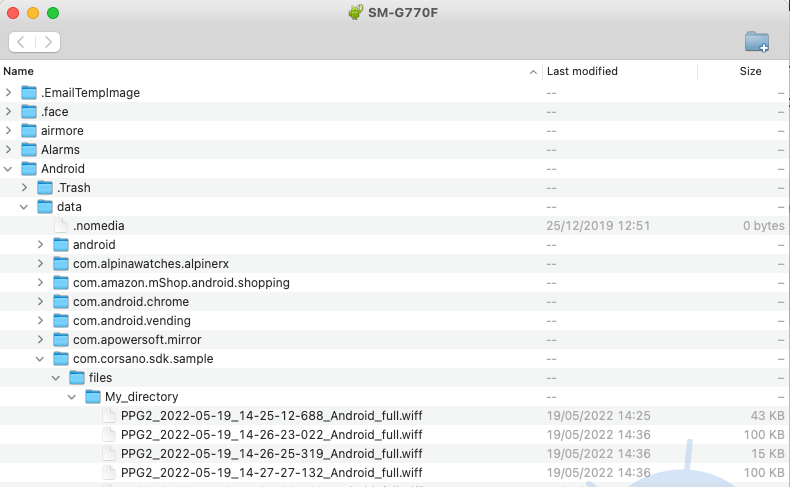
Code example (DataMeasurementFragment.kt in the sample app):
    val directory =
        mainActivity.getExternalFilesDir("My_directory") ?: return@setOnClickListener
    if (!directory.exists())
        directory.mkdir()

    dataSdkManager?.wiffFileExporter?.exportWiffFilesToAppDirectory(
        watchAddress, RawFileType.PPG2,
        directory
Export behaviour
exportWiffFiles copies the .wiff chunks recorded for a device to a folder the user has granted access to.
fun exportWiffFiles(
    address: String,
    type: RawFileType,
    documentFile: DocumentFile,
    onSuccess: ((ArrayList<RawFileChunk>) -> Unit)? = null,
    onError: ((Throwable) -> Unit)? = null
)
| Parameter | Type | Description |
|---|---|---|
address | String | MAC address of the bracelet whose files are exported |
type | RawFileType | PPG2, ACC, BIOZ, ECG or SLEEP |
documentFile | DocumentFile | Destination folder, from the system folder picker |
onSuccess | ((ArrayList<RawFileChunk>) -> Unit)? | The chunks that were copied |
onError | ((Throwable) -> Unit)? | Called when nothing could be copied |
Points worth knowing when you build a UI around it:
- Having nothing to export is a success, not an error.
onSuccessis called with an empty list. Do not present that as a failure to the user. - A file that cannot be copied does not abort the batch. Every other file is still exported; the failure is logged per file.
- Files that failed stay eligible. They are returned to the pending state and retried on the next export, rather than being stuck as permanently in-progress.
- Chunks whose
.wifffile no longer exists on disk are removed from the database before the export starts, so they cannot make every later export fail. - A destination folder that is no longer writable is reported through
onErrorwith a readable message.
Export therefore either copies what it can and reports it through onSuccess, or reports a real problem through onError — a partial batch is not treated as a total failure.
- Data interpretation
The exported files can be parsed using our sample code, available in Python or PHP.
Please request access via our contact page.